SOP: Set Up & Test Your Topaz Signature Pad
Model: T-S460-HSB-R
Purpose
This guide will help you set up your signature pad and make sure it is working properly.
Before You Start
- Make sure your computer is powered on and logged in
- Have your signature pad and USB cable ready
- Close any programs you don’t need
1. Install Required Software
Step 1: Install Microsoft Visual C++ (Required)
You will need to install two small Microsoft programs.
Download and install BOTH:
- https://aka.ms/vs/17/release/vc_redist.x86.exe
- https://aka.ms/vs/17/release/vc_redist.x64.exe
For each file:
- Open the downloaded file
- Double Click to Install
- Wait for it to finish
2. Install Topaz Software
Locate the signature pad model from the displayed list on the website
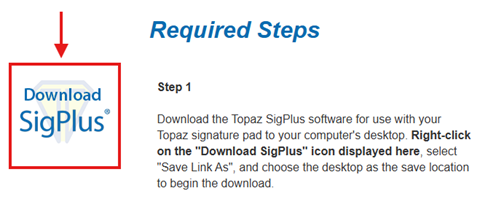
- Download the SigPlus installer using the image link on the site:
- Run the file you downloaded
- Click Next and accept all defaults
- Finish installation
3. Install SigWeb
- Download and install SigWeb for browser integration
- https://www.topazsystems.com/software/sigweb.exe (https://www.topazsystems.com/sdks/sigweb.html)
3. Connect Your Signature Pad
- Plug the signature pad into a USB port on your computer
- Wait about 10–20 seconds
Tip: Plug directly into the computer (avoid USB hubs if possible)
4. Test the Signature Pad
Step 1: Open the Test Program
- Click the Start Menu
- Search for: SigPlus Demo
- Open it
Step 2: Test Your Signature
- Click Start inside the program
- Use the pen to sign your name on the pad
You should see:
- Your signature appear on the screen
5. If It Works
✅ You’re all set!
You can now use the signature pad in your application.
6. If It Is NOT Working
Follow these steps in order:
Fix 1: Reconnect the Pad
- Unplug the USB cable
- Wait 5 seconds
- Plug it back in
- Try the test again
Fix 2: Restart Your Computer
- Restart your computer
- Log back in
- Try the test again
Fix 3: Try a Different USB Port
- Move the cable to a different USB port on your computer
- Avoid docking stations if possible
7. Still Not Working? (Reset & Reinstall)
Follow these steps carefully:
Step 1: Unplug the Signature Pad - Remove the USB cable from your computer
Step 2: Remove the Software
- Click Start
- Search for: Add or Remove Programs
- Open it
- Find and remove:
- SigPlus
- Any item labeled Topaz
Step 3: Restart Your Computer
Step 4: Reinstall Software
Repeat Section 2 (install both Microsoft files and SigPlus again)
Step 5: Plug the Pad Back In
- Connect the USB cable
- Wait 10–20 seconds
Step 6: Test Again
Open SigPlus Demo and try signing again
8. When to Contact IT
Contact IT if:
- You do not see anything when signing
- The pad does not respond at all
- You receive an error during installation
What to Tell IT
Please provide:
- Your computer name
- Location/site
- What step failed
Screenshot (if possible)
Was this article helpful?
That’s Great!
Thank you for your feedback
Sorry! We couldn't be helpful
Thank you for your feedback
Feedback sent
We appreciate your effort and will try to fix the article