Setting up Microsoft Authenticator App
Before we begin:
Download and install the Microsoft Authenticator app for Android, iOS or Windows Phone.
Step 1
- Open a browser on your computer and go to portal.office.com. Sign in to your Office 365 for business account.
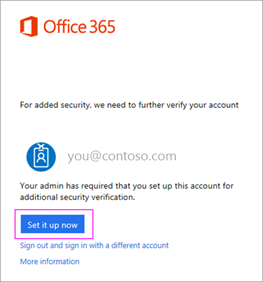
- Click Set it up now.
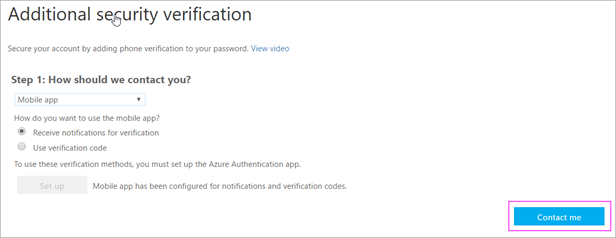
- Choose Mobile app from the dropdown.
- Make sure "Receive notifications for verifications" is selected. Click Set up
Step 2
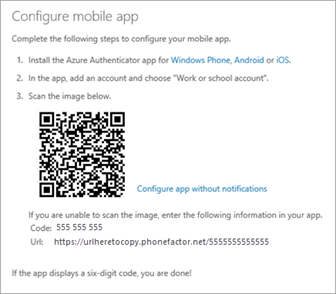
Wait for configuration pop-up box.
You should see a window on your computer that looks like this:
Step 3
- Open the Microsoft Authenticator app on your phone.
- Tap the + > Work or school account.
- Use your phone to scan the QR square that is on your computer screen.
- !!! Important !!!
iPhone users may have to enable the camera in Settings in order to scan.
If you can't use your phone camera, you'll have to manually enter the 9 digit code and the URL.
- Your account will be added automatically to the app and will display a six-digit code.
Step 4
Confirm activation status on your computer
- Switch back to your computer and click Done.
- Now wait for the Checking activation status text to finish configuring your phone.
- When it's complete, you'll be able to click the Contact me button on the right.
- !!! Important !!!
If configuration fails, just delete retry the previous steps again.
Step 5
Approve sign in on your phone
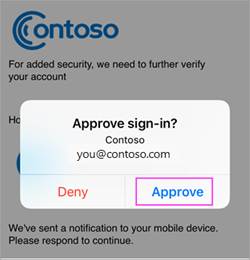
- Switch back to your phone and you'll see a notification for a new sign in.
- Go to the Microsoft Authenticator app.
- Tap Approve to allow it.
Step 6
Finish set up
- Back on the computer, follow any prompts that you might see such as adding a mobile number.
You're good to go!
Was this article helpful?
That’s Great!
Thank you for your feedback
Sorry! We couldn't be helpful
Thank you for your feedback
Feedback sent
We appreciate your effort and will try to fix the article